FF Proxy Server Permissions Guide for Android
Android asks you to approve permissions so that you stay in charge of what an app may do, but the prompts rarely explain themselves in plain language. Users often tap through quickly, then wonder later what they agreed to, or refuse something the app genuinely needed and end up chasing a problem that was really a declined prompt.
This guide walks through permissions calmly for users of FF Proxy Server official download for Android, in the same plain style as the rest of the site. The aim is understanding, not pressure: you will learn how to review what the app holds, how to change your mind, and how to test the effect of any change in an organised way.
Where to Review Permissions
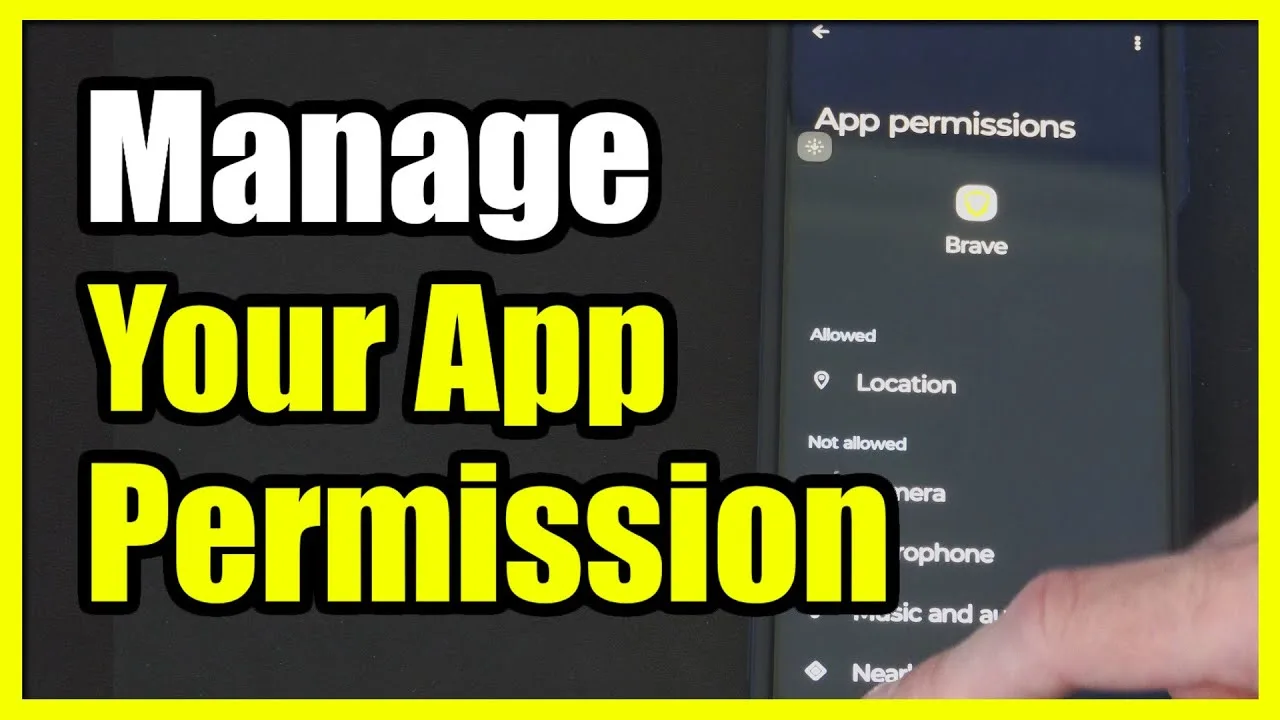
Every permission decision lives in your phone's settings, not inside the app. Open Settings, find the apps list, choose FF Proxy Server, and open its permissions page. There you can see what is allowed and what is not, and you can change any entry at any time. Nothing about permissions is permanent unless you leave it that way.
Take a slow look at that page once, even if you change nothing. Simply knowing where the controls are removes most of the anxiety around the topic. If the layout of the app itself still feels new, the FF Proxy Server main sections guide pairs well with this review, because it shows where in the app each function actually appears during normal use.
Why a Routing Tool Asks for Access
A routing utility works with your connection, so connection-related access sits at the heart of what it asks for. Without the ability to work alongside your network, the app cannot present routes or show meaningful status feedback. When a prompt is directly tied to the job you installed the app to do, allowing it is the expected and sensible choice.
Other prompts deserve a slower read. If a request seems unrelated to routing, pause and think about whether you have seen the feature it supports. Android lets you decline and revisit later, and a well-behaved app should still open and let you look around. Deciding in two steps, now and after a test session, is a reasonable approach for anything unclear.
What Happens When You Decline Something Needed
Declining a needed permission rarely breaks a phone. It usually shows up as a feature that will not start, a status that never updates, or a session that cannot begin. The fix is equally undramatic: return to the permissions page, allow what is needed, reopen the app, and test again. No reinstall is required for a simple change of mind.
This is why permissions sit on the checklist in so many troubleshooting routines. When behaviour looks broken, a thirty-second review of that page can end the mystery before deeper digging begins. Storage pressure causes a similar class of quiet problems, which is why setup and compatibility advice always mentions free space alongside permissions.
Change One Permission at a Time
If you tidy up permissions across your phone, work on one app and one entry at a time, then use the app normally. Changing several entries at once and then hitting a problem leaves you guessing which change mattered. The one-at-a-time habit is the same discipline that makes settings and route testing reliable elsewhere in this app.
After a change, run a short ordinary session rather than a deep investigation. Most permission effects are obvious within minutes of normal use. If everything behaves as before, the entry you changed was not load-bearing for the way you use the app, and you can leave your new setting in place with confidence.
Permissions After an Update or a New Phone
Updates occasionally re-ask for things, and a new phone starts every app from a blank slate. Build a tiny habit: after updating or moving phones, open the permissions page once, confirm the entries look the way you expect, and run a short test session. That two-minute review prevents the classic first-evening confusion on a new device.
The broader transfer routine in the FF Proxy Server device compatibility guide covers the hardware side of moving phones. Permissions are the software side of the same move, and handling both together means your first session on new hardware feels like a continuation rather than a restart.
A Two-Minute Monthly Review Habit
Permissions drift. Apps are updated, prompts are answered in a hurry, and phones accumulate decisions nobody remembers making. A two-minute monthly review keeps the picture honest: open the permissions page for the handful of apps you use most, confirm each entry still matches what you intend, and adjust anything that surprises you while the context is fresh in your mind.
Tie the habit to something you already do, such as clearing downloads or checking storage, so it happens without willpower. The review is also a natural moment to confirm that FF Proxy Server still holds the entries your sessions rely on, which quietly prevents the most common permission surprise of all: discovering a missing allowance in the middle of an evening you had planned to enjoy.
Final Thoughts
Permissions are controls you own, presented in a list you can revisit at any time. Review them once so you know the page, allow what the routing job plainly needs, change one entry at a time, and retest with a short session after any change. Handled that way, permissions stop being a source of worry and become what they were designed to be: your settings, under your control.